

01
Download, install and sign in
- Choose the Mac or Windows file on the official download page. On Mac, unzip it and move the app inside to Applications. On Windows, run the installer.
- Sign up, sign in and activate access in the app to start the 7-day free trial. Subscribe to Solo or Team on the website and sign into the app with the same account.
02
Meet the four panels
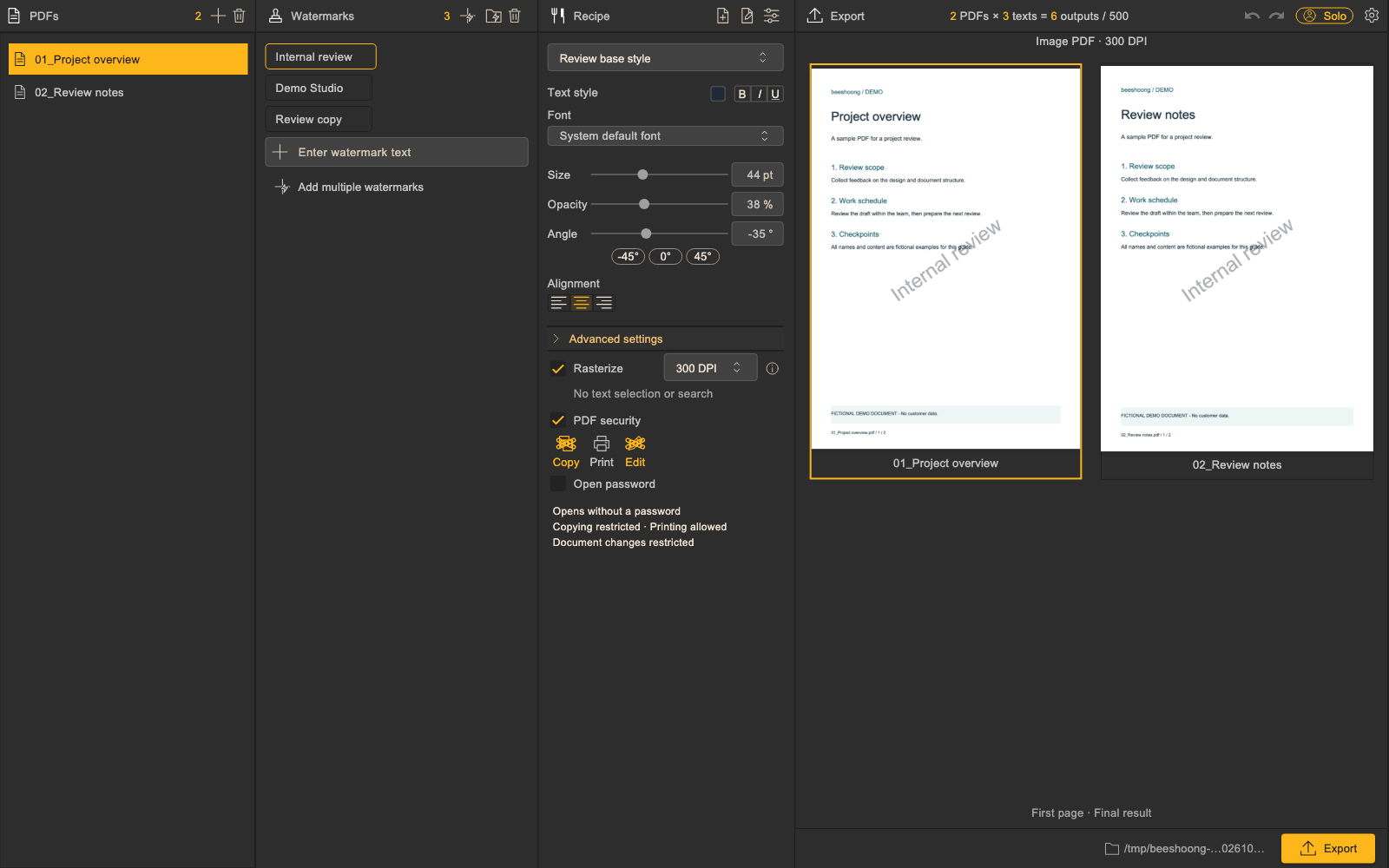
- From left to right: PDF files → Watermark → Recipe → Export. Prepare originals, watermarks, output settings and the save location in order.
1 · PDF files2 · Watermark3 · Recipe4 · Export
03
Add PDFs
- Use “Add PDF” to select one or several PDFs. Check the list of source files.
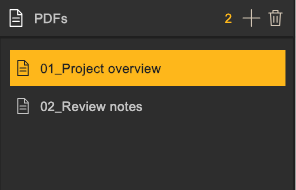
Fictional source PDFs to try yourself
04
Add watermarks and reuse groups
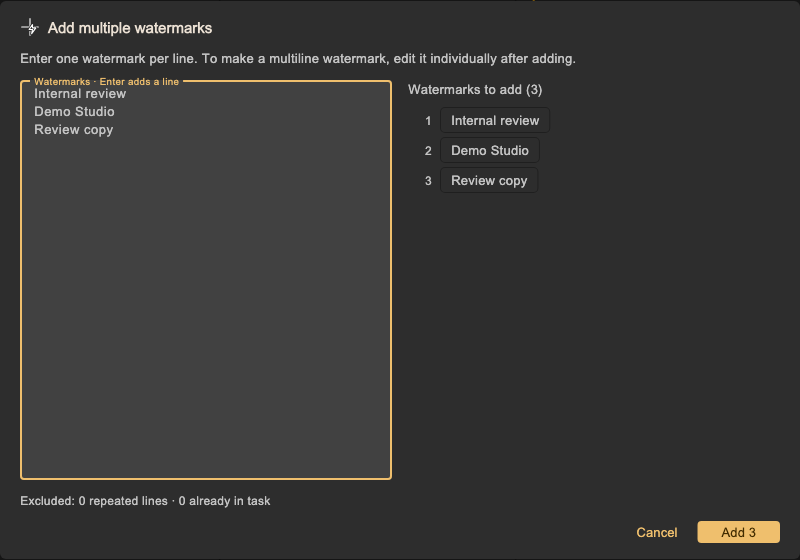
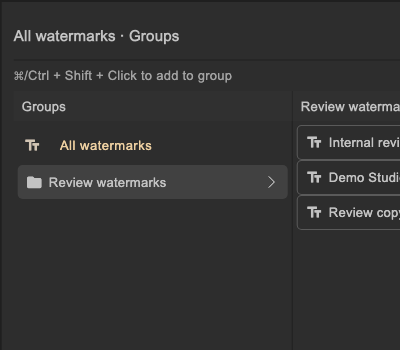
- Type a watermark in “Enter watermark text” and press Enter to add it. For a list, choose “Add multiple watermarks”, paste one per line, check the list and press the add button showing the count.
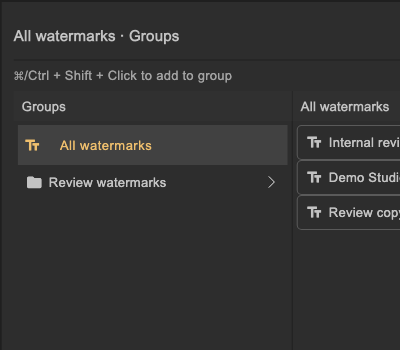
- Remove unwanted entries from the current task. This does not delete entries saved in “All watermarks” in the lightning folder.
- Organize frequently used watermarks into groups in the lightning folder. Select entries and add them to the current task to reuse them.
05
Recipe: style, security and presets
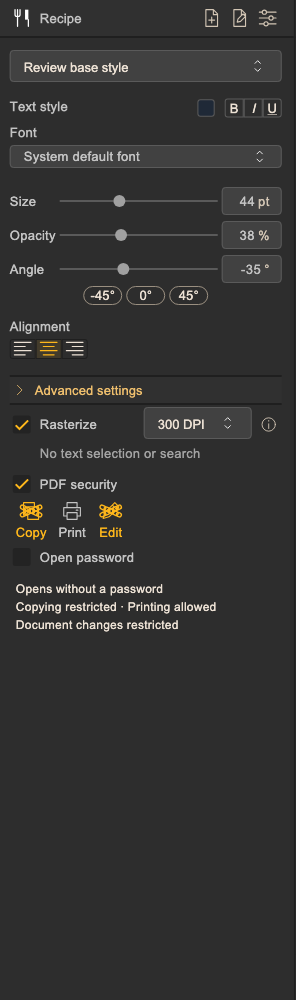
- Adjust font, color, size, opacity and angle. If needed, set PDF printing, copying and editing permissions or an opening password.
- PDF permission enforcement depends on the viewer. Save settings as a recipe for reuse; PDF password values are not saved in recipes.
- Turn on “Rasterize” to combine the page content and watermark into an image PDF. New settings default to 300 DPI; 150 DPI is also available. Higher DPI can increase processing time and file size.
- Image PDFs lose body-text selection and search, links, and interactive forms. Turn rasterization off when you need the original structure. This does not fully prevent screenshots, OCR, or watermark removal.
- The source files in this example are already image PDFs, so their body text cannot be selected or searched to begin with.
06
Preview, choose a folder and export
- Preview the watermark, then choose the output folder.
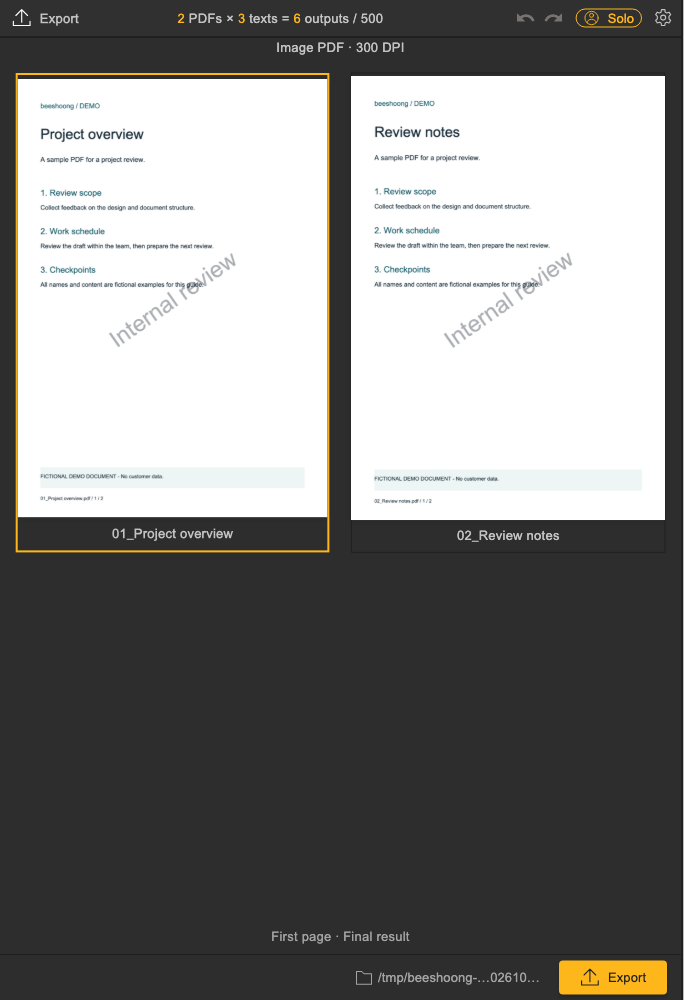
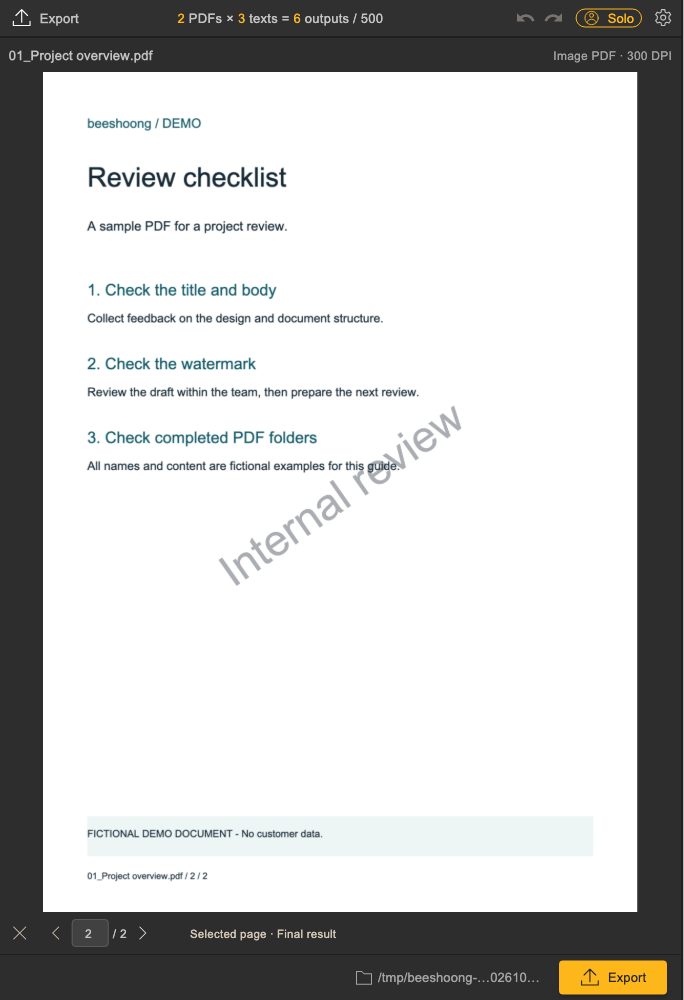
- List previews show the first page. Double-click a PDF preview to enlarge it, then use the bottom arrows or page number to inspect other pages. The previous image remains visible while updating, so check that the update has finished.
- Check PDFs × selected watermarks = output PDFs, then press “Export”. Each export supports up to 500 output PDFs.
07
Find your watermark folders
- This example uses 2 PDFs × 3 watermarks. It creates 3 watermark folders, each containing 2 PDFs: 6 PDFs in total.
- While generation continues, use “Open folder” for a completed folder to inspect its results. The “beeshoong” sound plays when the entire export finishes.
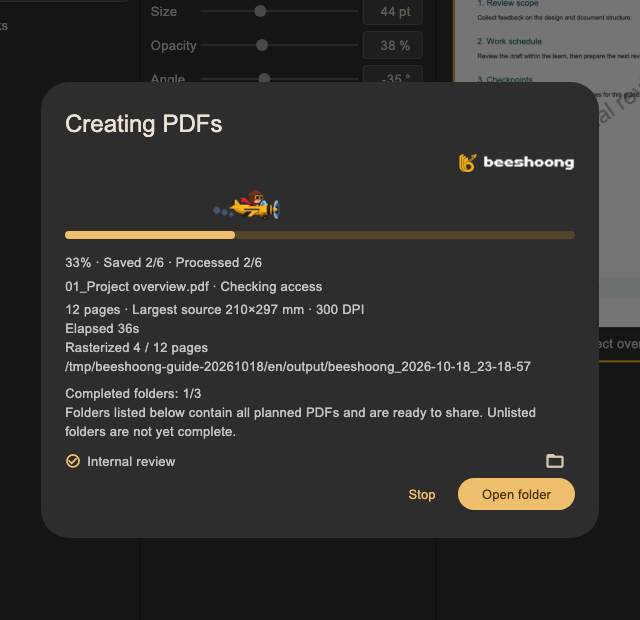
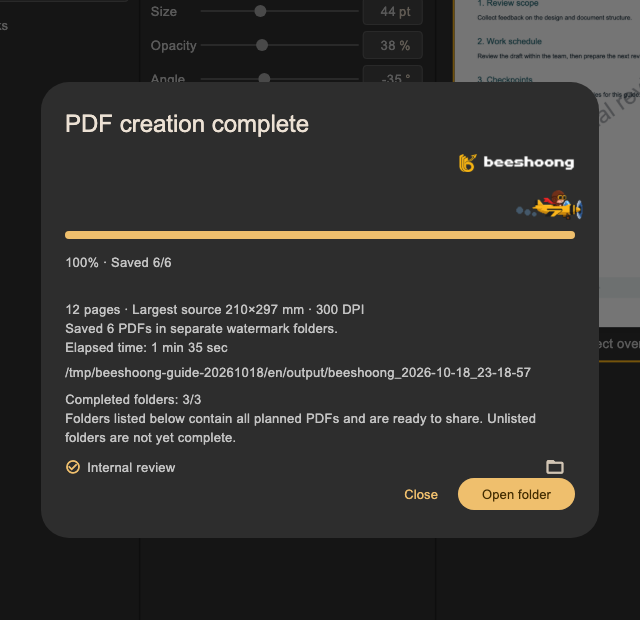
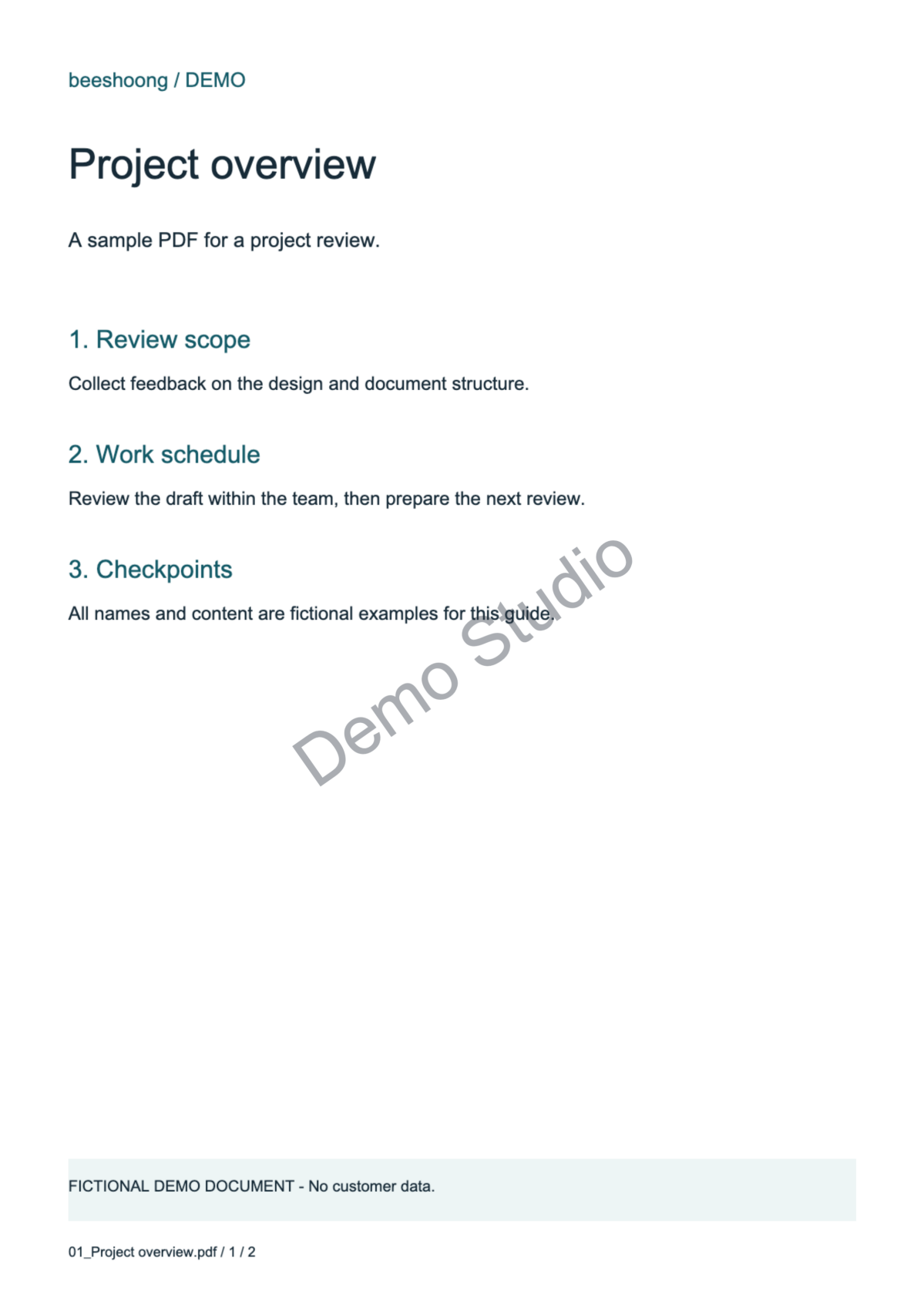
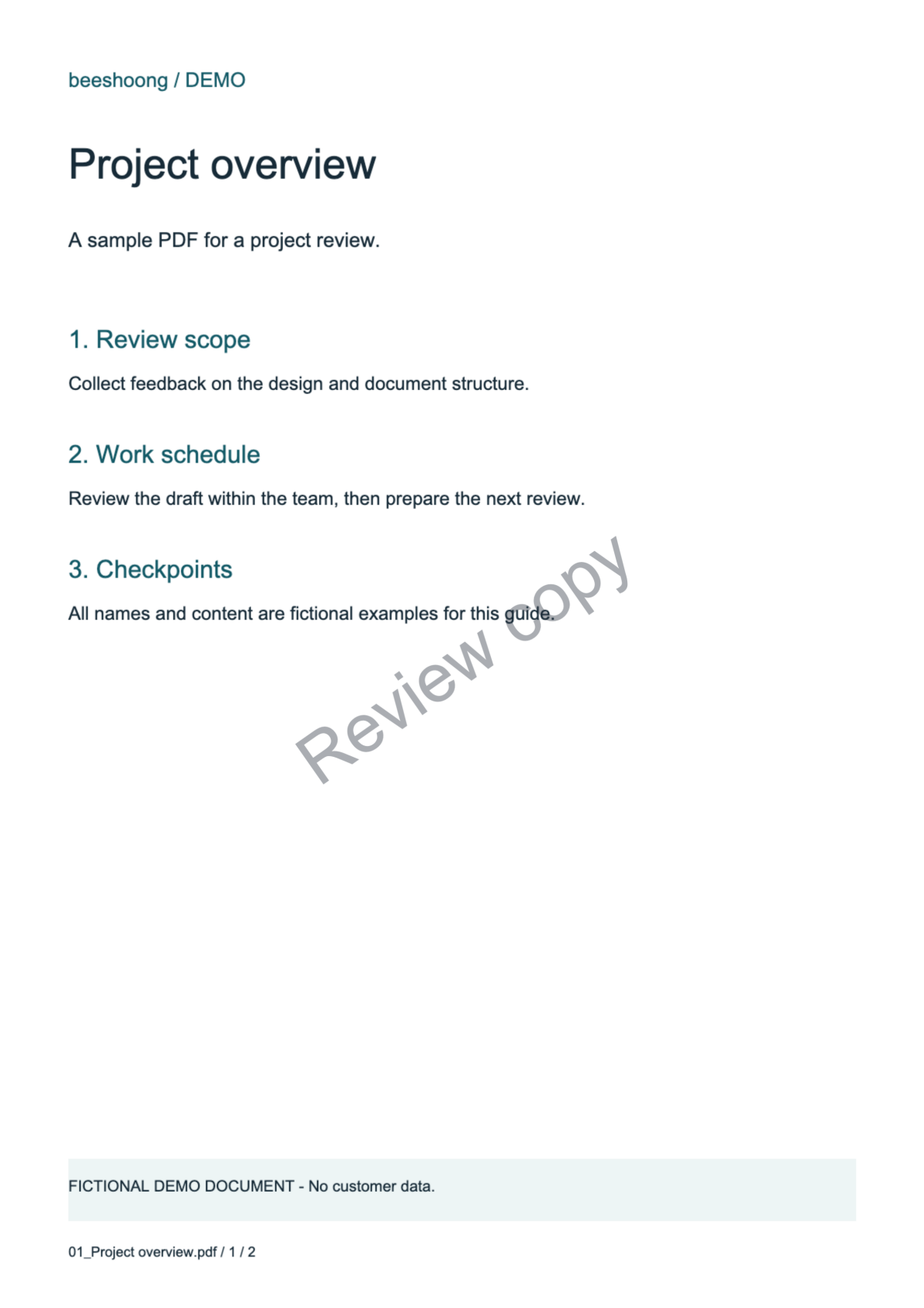
Actual generated watermark folders and PDFs
- 📁 Internal review
- 📁 Demo Studio
- 📁 Review copy
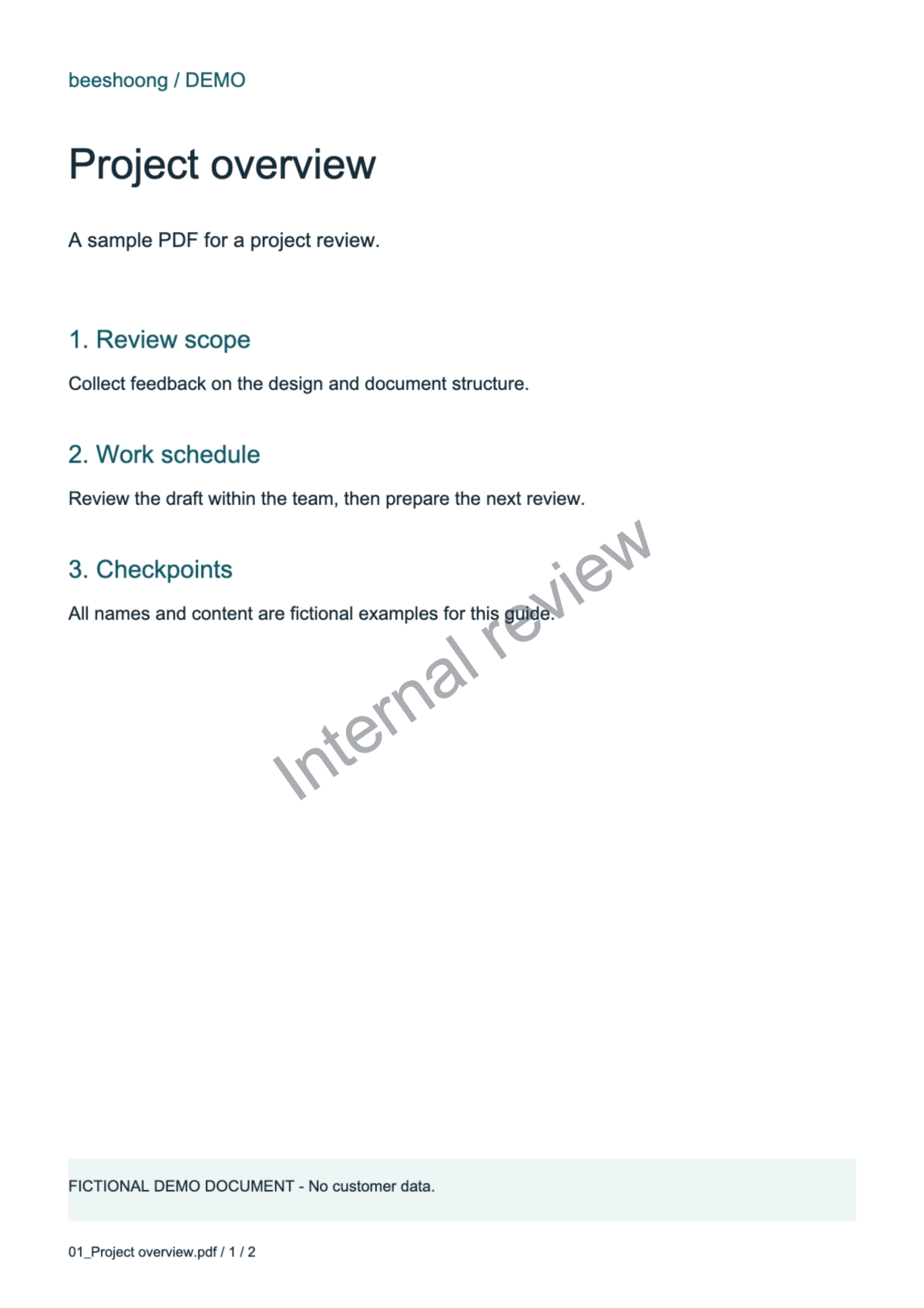
Compare the other watermark results
Useful details
- PDF watermark processing takes place on your computer.
- After online access verification, use the same device offline for up to 7 days, or until access expires if earlier.
- One license registers up to 2 devices, with 1 active device at a time. Manage registered devices in the website’s My account.
- Team administrators invite members by email; members manage their own devices.
- The app UI supports Korean, Chinese, Japanese and English. Hover tooltips can be turned on or off.
- Account information shows access status; app information shows version and update details.
- Back up, restore or selectively share watermarks, groups and recipes. Signing in alone does not restore these on another computer.
- Check processing stages and progress. Stopping keeps PDFs already completed. If a memory notice appears, reduce the task size or DPI and retry.
About the screenshots and sample files
This page shows the real English Flutter app UI rendered with fictional data. The example uses 2 image-based PDFs and 3 watermarks, and includes PDFs actually exported by the app. Captures use offscreen Mac rendering and substitute UI fonts. This guide follows official version 1.0.2+100; some unchanged screens reuse earlier captures. The sample source PDFs are already image-based and have no selectable or searchable body text.